Adding a portfolio link to your resume can turn an ordinary application into an immediate interview invitation. While a bullet point claims you built an application or led a design overhaul, a live portfolio provides undeniable visual and technical proof.
However, many applicants hesitate: Will adding a hyperlink or web address cause an Applicant Tracking System (ATS) to reject the resume?
The short answer is no—modern ATS software can read hyperlinks. However, how you format and position that link determines whether the system parses your data cleanly or discards it as unreadable text.
Here is how to include your portfolio link on an ATS-friendly resume to satisfy automated parsers and human decision-makers.
1. How Applicant Tracking Systems Read Web Links
Applicant Tracking Systems (such as Workday, Greenhouse, Lever, and Taleo) process your uploaded document in two stages:
Text Extraction: The software extracts the raw text from your PDF or Word document into a flat database profile.
Field Parsing: The algorithm searches for specific markers—such as your name, contact details, work history, and web links—and assigns them to distinct fields in the recruiter's candidate dashboard.
If your link is formatted as plain text with an active underlying hyperlink, modern parsers extract both the text and the destination URL without issue.
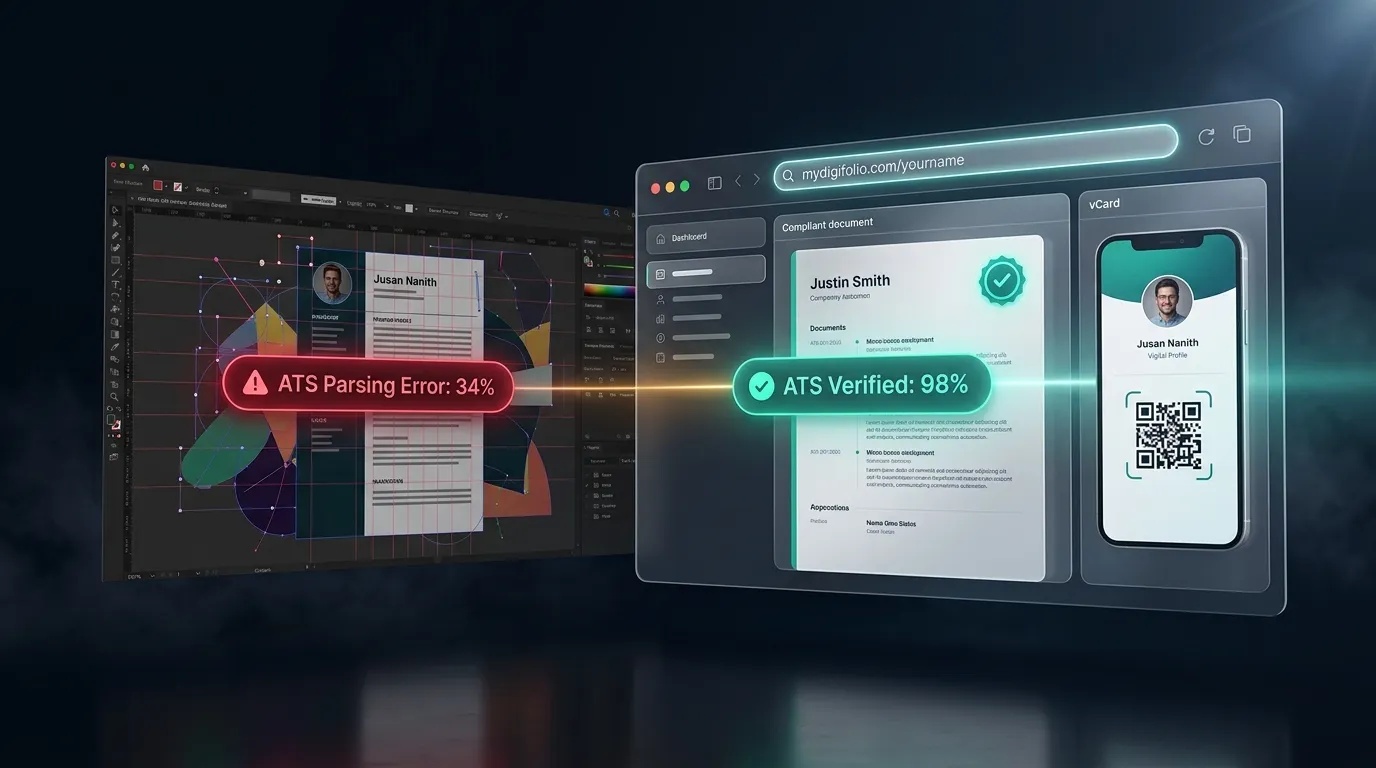
Problems arise when applicants use workarounds like embedding links behind graphic icons, placing them inside isolated layout tables, or using multi-line raw URLs with long tracking parameters.
2. The Three Common Mistakes That Break ATS Parsing
Mistake 1: The Icon-Only Hyperlink
A common visual trend is replacing contact words with small vector icons (such as a globe icon for your website or an envelope for your email). ATS parsers do not see images. When the software strips away graphic layers, the icon disappears completely. If you attached your hyperlink to that icon without accompanying text, the parser misses your portfolio address entirely.
Mistake 2: The Generic "Click Here" Anchor
Hyperlinking phrases like "Click here to see my work" or "View Portfolio" works well for a human reading a PDF on a laptop. However, if an enterprise ATS strips hyperlinks to pure text during ingestion, the recruiter's screen will simply read: "Click here to see my work"—with no visible web address to follow. If the hiring manager prints your resume for an interview, a hidden hyperlink is impossible to navigate.
Mistake 3: Pasting Long, Unformatted URLs
Pasting an unedited, 80-character URL filled with subfolders, user IDs, and tracking parameters creates formatting breaks. For example, pasting an address like
3. The Golden Rule: Visible, Clean, and Hyperlinked
To ensure your portfolio link works across all ATS platforms, printed sheets, and human reviews, follow the Visible Link Rule:
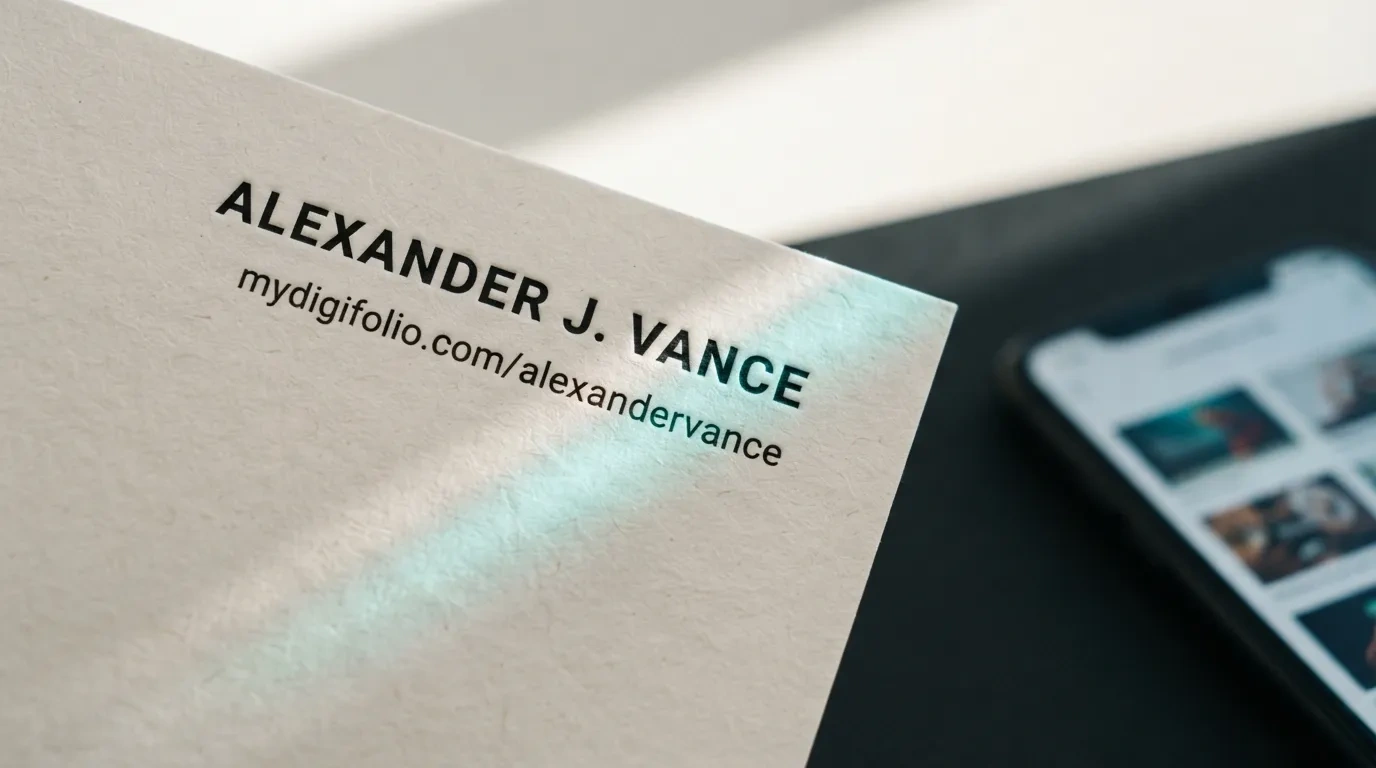
Display the short, clean web address in plain text, and hyperlink that exact text to the live destination.
Using a clean format like
For the ATS Parser: The system reads the plain-text URL and correctly categorizes it as a personal portfolio website.
For the Screen-Reading Recruiter: The hiring manager can click the text directly in the PDF to open your portfolio in a new tab.
For the In-Person Interviewer: If the resume is printed on paper, the reviewer can type the clean, short address into a browser without guesswork.
4. Where to Place Your Portfolio Link on the Page
Your portfolio link should always sit within the contact header at the very top of your resume, alongside your basic details:
Line 1: Your Full Name
Line 2: Professional Title | Core Specialty
Line 3: City, Country • Phone Number • Professional Email
Keep these placement rules in mind:
Keep It in the Main Body: Do not put your contact header inside the software's formal "Header" or "Footer" margin zones in Microsoft Word or Google Docs. Some older parsers ignore document margin headers to avoid reading repeating page numbers.
Avoid Layout Tables: Do not place your contact information inside invisible multi-column tables. Tables can scramble text reading orders during parsing.
Position It First: Recruiters spend less than seven seconds on an initial scan. Putting your portfolio link directly under your name ensures they see it immediately.
5. The Plain-Text Verification Test
Before submitting your resume to a job application, verify that your portfolio link survives automated text extraction with this simple 30-second test:
Open your finalized PDF or DOCX resume.
Select all text using keyboard shortcuts (Ctrl + A on Windows or Cmd + A on Mac) and copy it.
Open a basic text editor (such as Notepad or TextEdit) and paste the contents.
Check your contact header to ensure your portfolio address is clearly visible on a single line and did not merge awkwardly into adjacent text.
If your portfolio address is visible, intact, and legible in plain text, any ATS parser will read it accurately.
6. What Recruiters Want to See When They Click
Clearing the ATS filter is only step one. Once the human recruiter clicks your portfolio link, you have roughly thirty seconds to validate their interest.
Ensure your destination page delivers:
Immediate Identity: A clean professional headline stating what you do, your primary tools, and your availability.
Three to Four Strong Projects: High-impact case studies highlighting the problem, your exact contribution, and the measurable results.
Mobile Responsiveness: Many recruiters review applications on tablets or mobile phones; your portfolio must adjust cleanly to any screen size.
Frictionless Follow-Up: A downloadable ATS resume and a scannable digital contact card so they can contact you immediately.
7. How MyDigiFolio Handles the Formatting for You
Manually formatting ATS-compliant documents while managing a separate personal website often leads to version mismatches, broken links, and high hosting bills.
MyDigiFolio automates this entire workflow:
Clean Personal URLs: Claim an uncluttered, branded web link (such as
mydigifolio.com/yourname ) that looks professional in print and online.Automatic ATS Header Formatting: MyDigiFolio generates single-column PDF and Word resumes with your personal portfolio URL embedded and hyperlinked according to ATS best practices.
Zero Hosting or Domain Fees: Launch a responsive, mobile-ready portfolio website without paying for website builders, domain registrations, or server upkeep.
Real-Time Synchronization: When you complete a new project, update your dashboard once—your live portfolio updates instantly, while the link on your resume remains active and accurate forever.
Put Your Best Work Forward
A resume gets your credentials past the automated gatekeeper; an online portfolio proves your capability to the human hiring manager. Format your link cleanly, keep the URL visible, and make it effortless for decision-makers to explore your work.
Build your ATS-friendly resume and claim your free personal portfolio link in under 10 minutes.
👉